Disclaimer
This blog post is written based on a session I had with Google Gemini, googling for “RockPro64 toggle GPIO in U-Boot”.
Of course, nearly like always, the register name, page or chapter, were nowhere to be found in linked documentation, great!
The conversation turned to hell, where it was super hard to not ragequit or throw insults at it. Classical, I know…
As the topic might be more interesting than “I’m too stupid to browse the internet nowadays” which could also be a topic itself, I decided to make a blog post out of it.
So, if you’re in YOLO mode, just type this in U-Boot, this is roughly what the fantastic LLM told me to do, what could go wrong?
mw.l 0xff730004 0x00000012
mw.l 0xff730000 0x00000012
The hardware world
I’m using a RockPro64 from Pine64 as a server (the famous one with the RAID issue I’m still fighting with).
I’m not sponsored; a friend of mine bought the board and didn’t use it anymore.
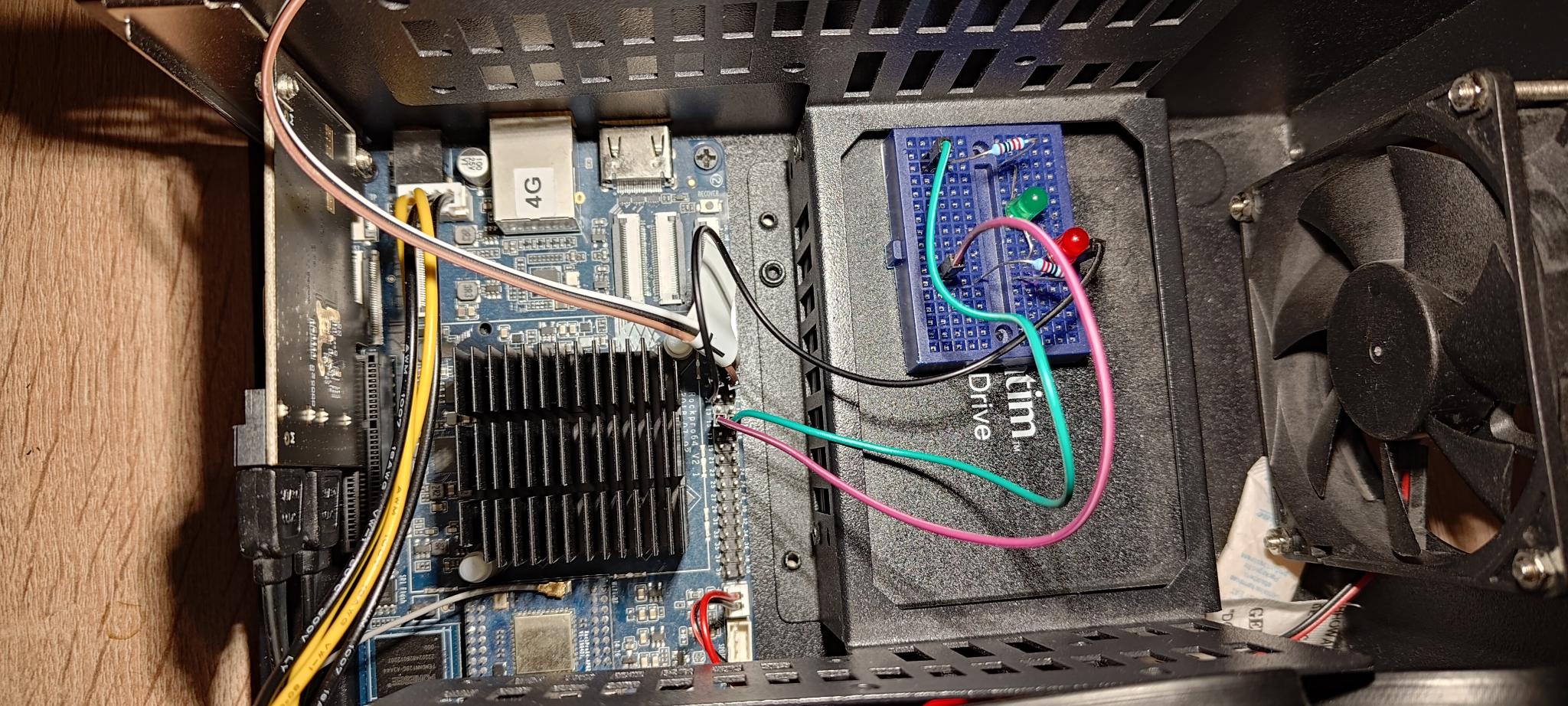
So, the RockPro64 is in its case, the white LED barely visible, and as I cracked down and needed to open the board for further diagnostics anyway, let’s add some LEDs to it.
After consulting the pins mapping table, let’s go for pins 15 and 16: mapped to GPIO Chip 1, Lines 1 and 4. Why these? Because GPIO1_A1 and GPIO_A4 sound good.
Side notes:
Always use resistors with LEDs (220 Ohm is my goto value, yes it’s a topic you can spend time with, but avoid wasting time debugging with burnt LEDs).
Stay away from the kind of cheap bread boards you see on the pictures, I spend ~30 minutes of debugging why the setup didn’t work, just because some columns of the breadboard have shorts of faulty contacts. Great!
Don’t worry about the hardware details, the only relevant stuff to follow here:
- RockPro64: the System on Chip (consider this to be a CPU if you don’t know this term, that’s fine) is a Rockchip RK3399.
- We’re using CPU Pins GPIO1_A1 and GPIO1_A4 as GPIOs.
Finding documentation
So you want to find the reference manual of the CPU you have on your desk, beware and welcome to the fantastic hardware world…
If you want to play a game, go to rock-chips.com and try to find the reference manual of the RK3399 CPU.
Hint: we’re talking about one or more heavy PDFs, in the ballpark of thousands of pages for such a chip.
The English button is on the top-right corner, don’t thank me: you won’t find any info in English either.
The wayback machine link just in case
Did you find something else than the marketing datasheet of ~75 pages?
I tend to use the great wayback machine to link stuff (disclaimer: I’m financially supporting it). In this specific case it’s mandatory: the datasheet is officially gone.
And the results of the game… Whaaat, you gave up? Ok, me too.
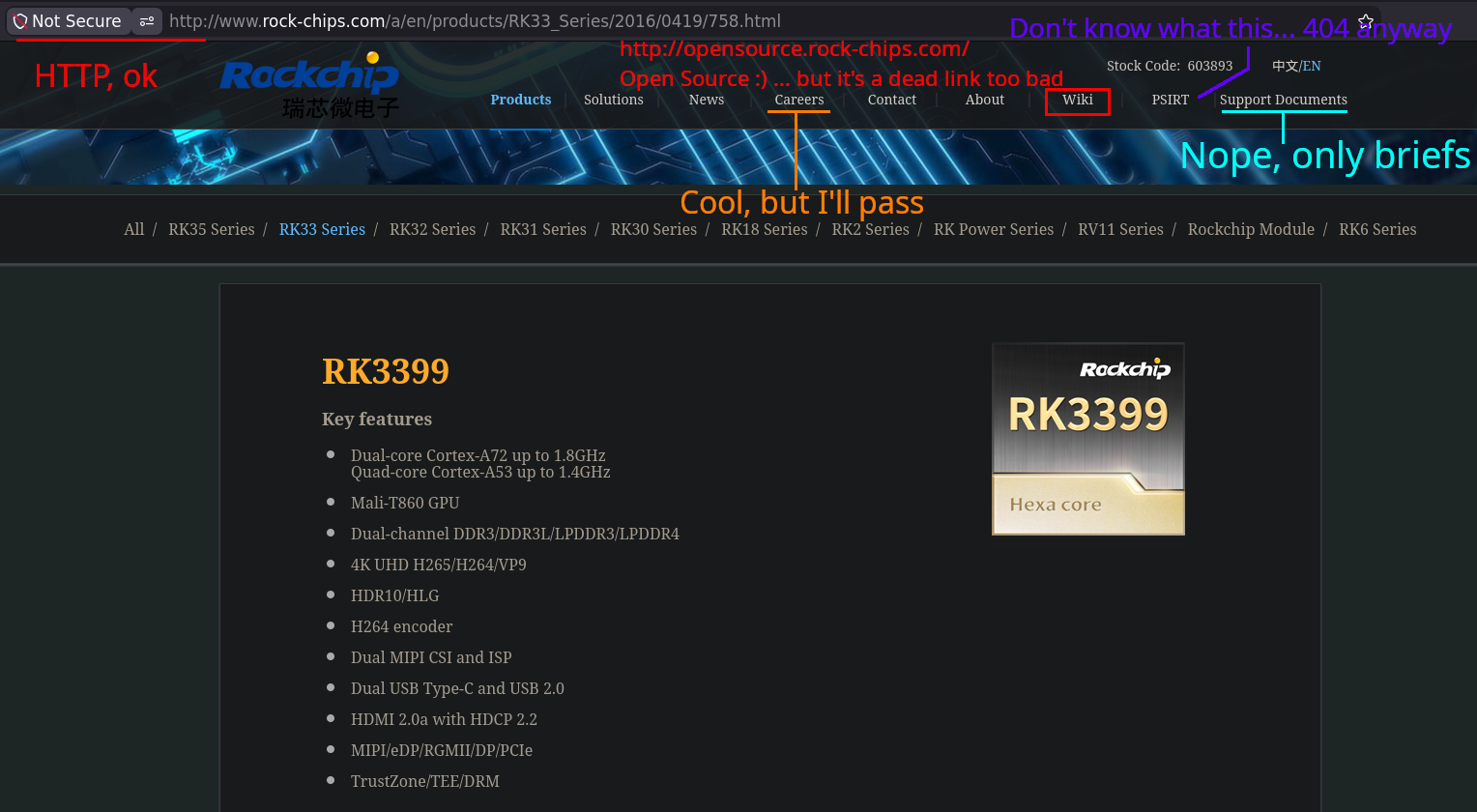
Fun fact: I made a typo writing this article and discovered that rock-chip without ‘s’ also exists and references Rockchip stuff fair enough.
Here are the links to the confidential reference manual part 1 and part 2… from the Stanford Secure Computer Systems group; Archived FTP
Kudos to Stanford and a cool discovery for me: Zachary Yedidia who studied there and made them host the refman for us. Definitely prefering linking a low-level hard-core hacker (which also had fun with incremental compilation, in D, not in Zig) than a random hardware company making its documentation as accessible as usual in this domain.
Yes, this document is probably outdated with a shit ton of erratas barely documented, no I don’t care (plus looked for this documented intensively twice, once really searching for it, another time writing this post wanted to make sure I didn’t miss it).
Here I just want to set a GPIO, so fine I’ll take what I find. If I were to pick a board seriously or evaluate hardware to base something long-term-ish, this would be a red flag.
As this document is officially (still?) confidential, it’s understandable that Pine64 does not host it, but this is still a pain point.
RTFM
So, after raging about why the fuck is it so hard to find a document in the hardware world, how do we proceed?
Remember that we used the pins of the RockPro64 mapped to the CPU to GPIO1_A1 and GPIO1_A4. It means we need to find at which address are these pins of the CPU mapped.
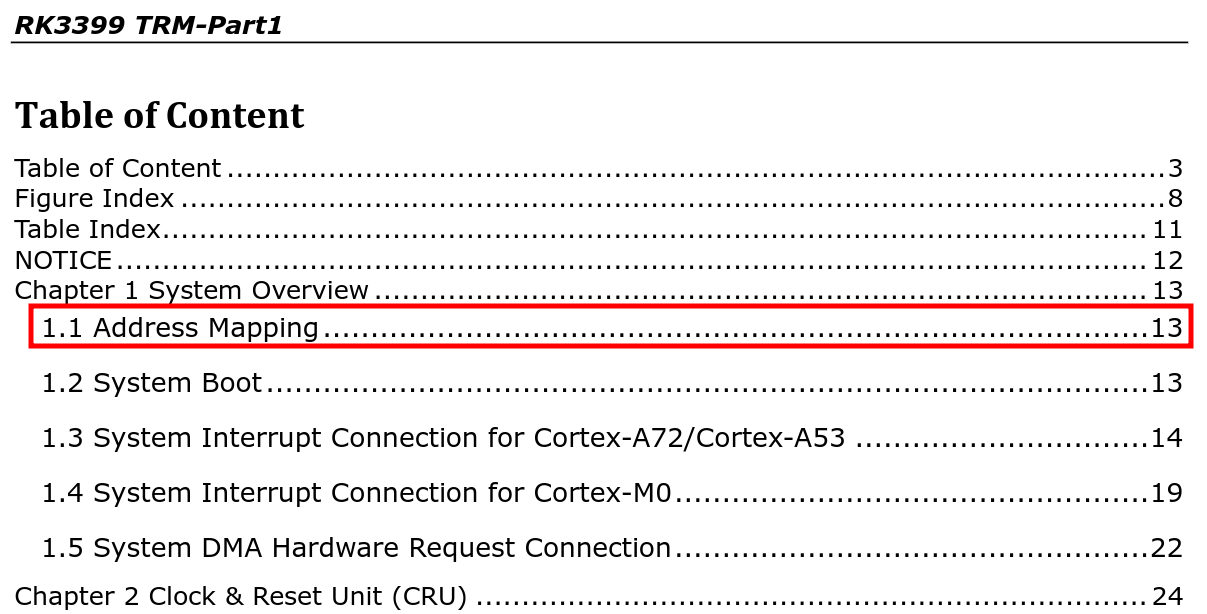
Meta: in this kind of overwhelming documents, the stuff working for me: scroll through the table of content and always jump back to it. Do not search in the document yet, taking the risk to end up page 666 and seeing your PDF viewer freezing loading the thousands next results without a way back. Don’t rely on me to advertise LLMs, but generally uploading a few chapters and let them process these looking for specific information works fairly well whereas they just explode if you somehow manage to upload the full PDF.
So, let’s go: I went for the “Part 1” because after opening both, I didn’t see a clear explanation of which one if for what (probably if you register on their website as a manufacturer promising to buy million of chips you get a better explanation of why the reference manual is split in two parts, but not today).
GPIO Group 1
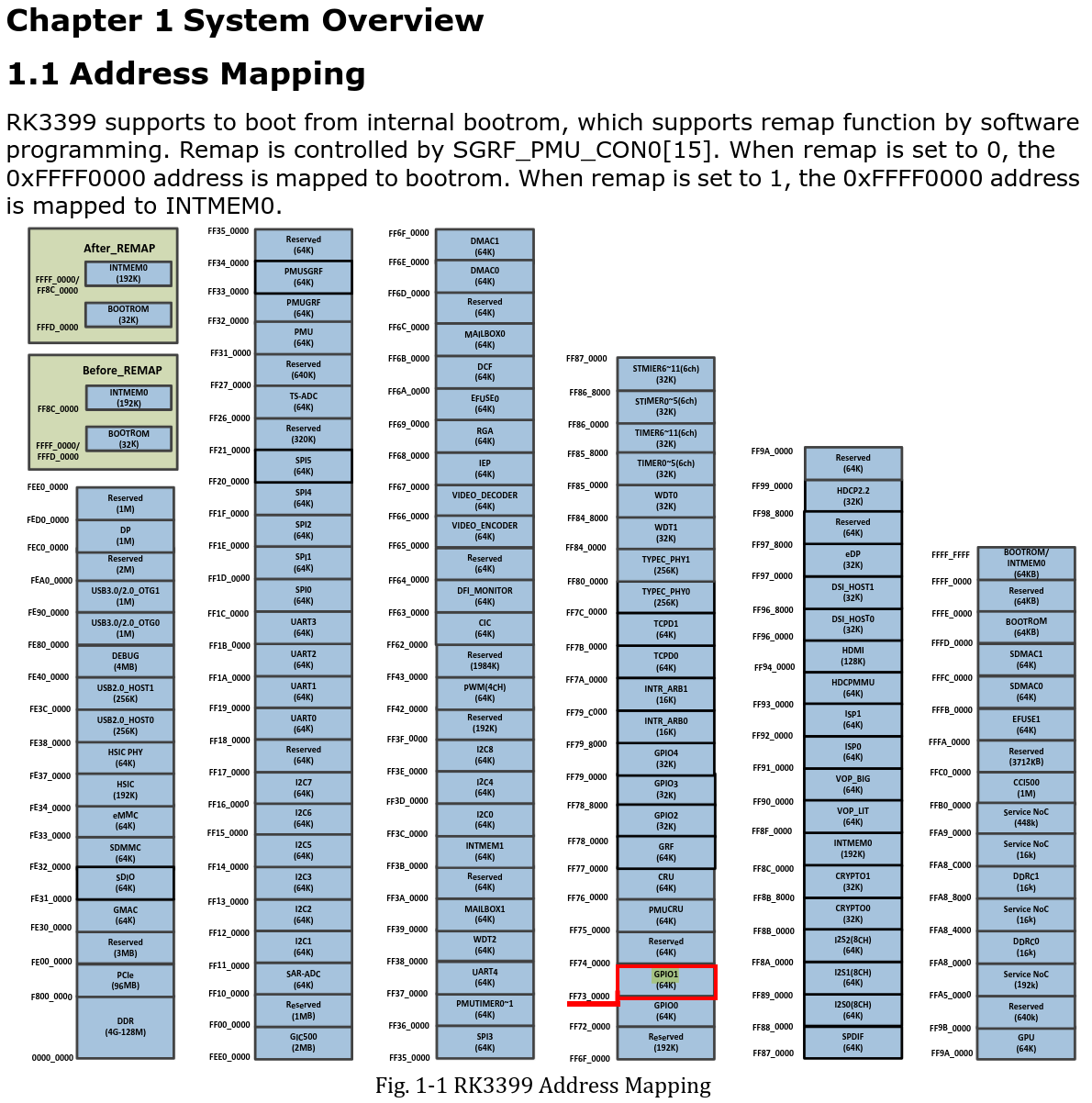
The GPIO1 group is mapped at address $FF73_0000 let’s keep this in mind.
GPIO lines 1 and 4
Now, we need to find where the lines 1 and 4 (where we plugged the LEDs) in the GPIO group are mapped.
As everything is well done, you can click on the GPIO1 entry of the table to jump to the relevant page. Nope, just kidding, stop using your Windows tool called a mouse, there is of course, no link here, so go back to the table of content.
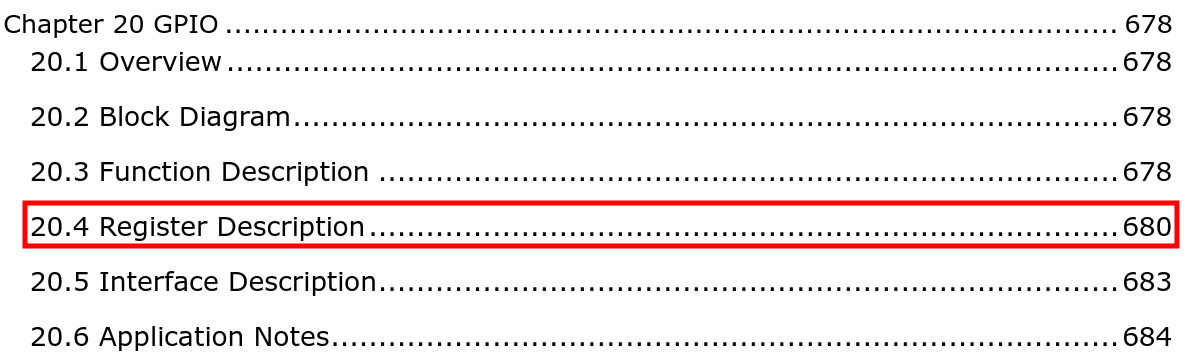
Let’s go directly to the registers section of the GPIO chapter.
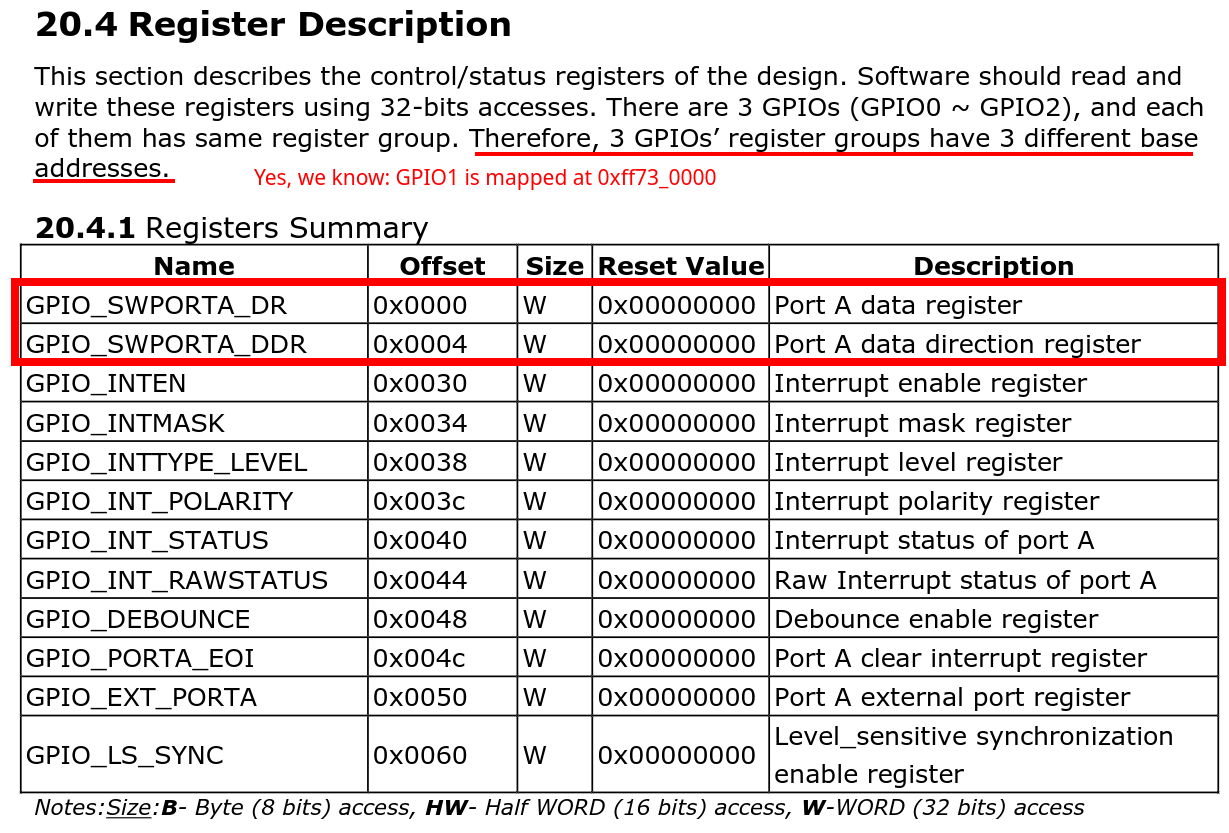
The interesting registers for us are:
- Data Direction register (GPIO_SWPOARTA_DDR), as we need to specify that the LEDs are output.
- Data register (GPIO_SWPOARTA_DR), do we want to set or reset the GPIO.
Let’s write
Ok, we have 32 bits to set to say that lines 1 and 4 are output and set high (to 1). How to know what these bits represent?
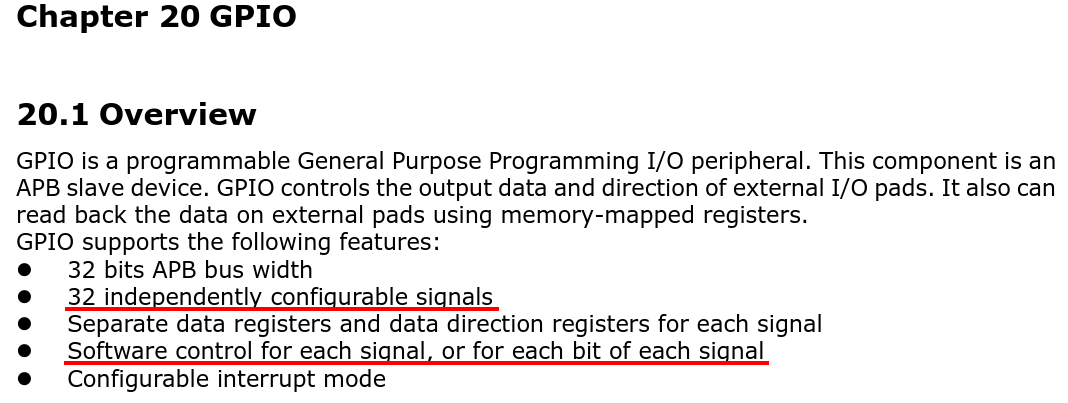
This means that signals (lines) 0 to 31 are mapped to bits 0 to 31. The lines 1 and 4 we’re interested in correspond to bits… 1 and 4, yes you follow.
Let’s set the GPIO1 Lines 1 and 4 to output (a LED is an output device, a keyboard an input device from the CPU perspective).
in binary: 0b0001_0010 (the line 0 is mapped to the bit 0). This is 0x12 in hex.
Direction: Output
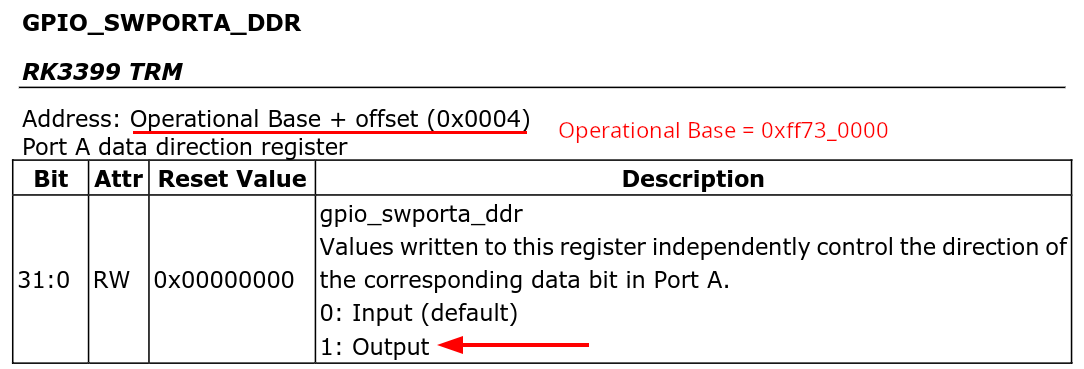
0 is input and 1 is output (what we want for our LEDs): Let’s write 0bXXXX_XXXX_XXX1_XX10 to this register!
What’s the value of ‘X’? I’m lazy a professional! So, I force the bits I don’t care to their default value (in this case, input: 0). To do this cleanly, it would be a good idea to read the GPIO value and OR the relevant bits we want to set. We have no idea what the other thirty signals (lines) are mapped to, and we just set them to input writing 0x12…
In U-Boot to write 32 bits, use a long: MemoryWrite.long: mw.l which takes an address and a value:
mw.l 0xff730004 0x00000012
Now that the relevant GPIOs are configured as output, let’s set them to high (ON).
Value
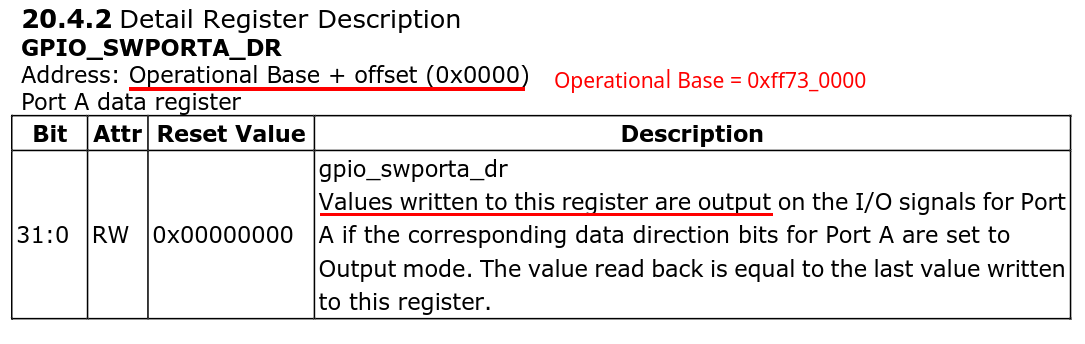
“Value written to this register are output”, so let’s set the LEDs high (set to 1). We can use the same mask as before to set both LEDs. mw.l 0xff730004 0x00000012
Or control independently line 1 with mw.l 0xff730004 0x00000002 and line 4 with mw.l 0xff730004 0x00000010
… And the LEDs turn on \o/
I hope some of the hardware / software thin frontier hard to grasp stuff were a bit demistified.
Bonus stages
Play with a GPIO under Linux
Directly writing to /sys/class/gpio/ is deprecated… for a decade.
Use instead gpioset -t0 --chip 1 4=1 for instance to set the GPIO group 1 line 4 to 1.
Permanent U-Boot config (under Armbian)
One needs to create a U-Boot script and recreate the image to load this on boot (again, probably a bad idea to set every unused GPIO of the first group as input).
Create a uboot script (for instance in /boot/uboot_leds.cmd)
echo "Turning both LEDs ON"

# Set GPIO1 lines (bits) 1 and 4 to output
mw.l 0xff730004 0x00000012

# Set GPIO1 lines 1 and 4 to high
mw.l 0xff730000 0x00000012
Then, recreate the image (fixup.scr is a hard-coded Armbian output name, you may have to adapt this part).
mkimage -C none -A arm64 -T script -d /boot/uboot_leds.cmd /boot/fixup.scr
Loud ugliness (under Linux)
As you may have guessed, having LEDs in a closed box is not that ideal and there is no buzzer, by experience I cannot rely on the network, so to have even more fun I hi-jacked the fan (which turns anyway at the incredible speed of 0 RPM to cool down a board and 2 SSDs doing nothing most of the time).
By hi-jacking I mean: let’s spin it in an SOS pattern if something goes wrong so that you have audible feedback while passing by instead of actively having to peak at the box from time to time to check if a LED is on.
Depressing quick but really dirty echo:
echo 255 > /sys/devices/platform/pwm-fan/hwmon/hwmon3/pwm1
Really dirty because… actually someone else plays around with the fan along with you echoing in the PWM (who could have forsee this?).
Which means that the real code I use echoes periodically to make a Morse dot or dash.
Plus, don’t do that if you really need your fan btw…
That said, it works good enough for my use case; Spoiler alert: someone asked me why is the server doing weird noises, the question you don’t want to hear after a normal shitty day.